MAKCU Setup
Use MAKCU for native keyboard-and-mouse output or supported PS5 and Xbox controller output, including compatible 2 PC setups. Select MAKCU in DilemmaAim's Output System settings.
Flashing the firmware
Use DilemmaAim's MAKCU firmware flashing tool to install the firmware for the output mode you intend to use. You only need the BOOT button during flashing if the tool asks for it.
- Connect MAKCU to your Windows PC for flashing and open the MAKCU firmware flashing tool in DilemmaAim.
- Select the detected COM port and the firmware/output mode you need: KBM, PS5 or Xbox.
- If the flasher asks you to enter boot mode, use the BOOT button shown below and follow the tool's prompt. Do not use the BOOT button during normal play.
- Start the flash and leave the device connected until the tool reports completion. Reconnect the cables for your selected output mode using the relevant diagram below.
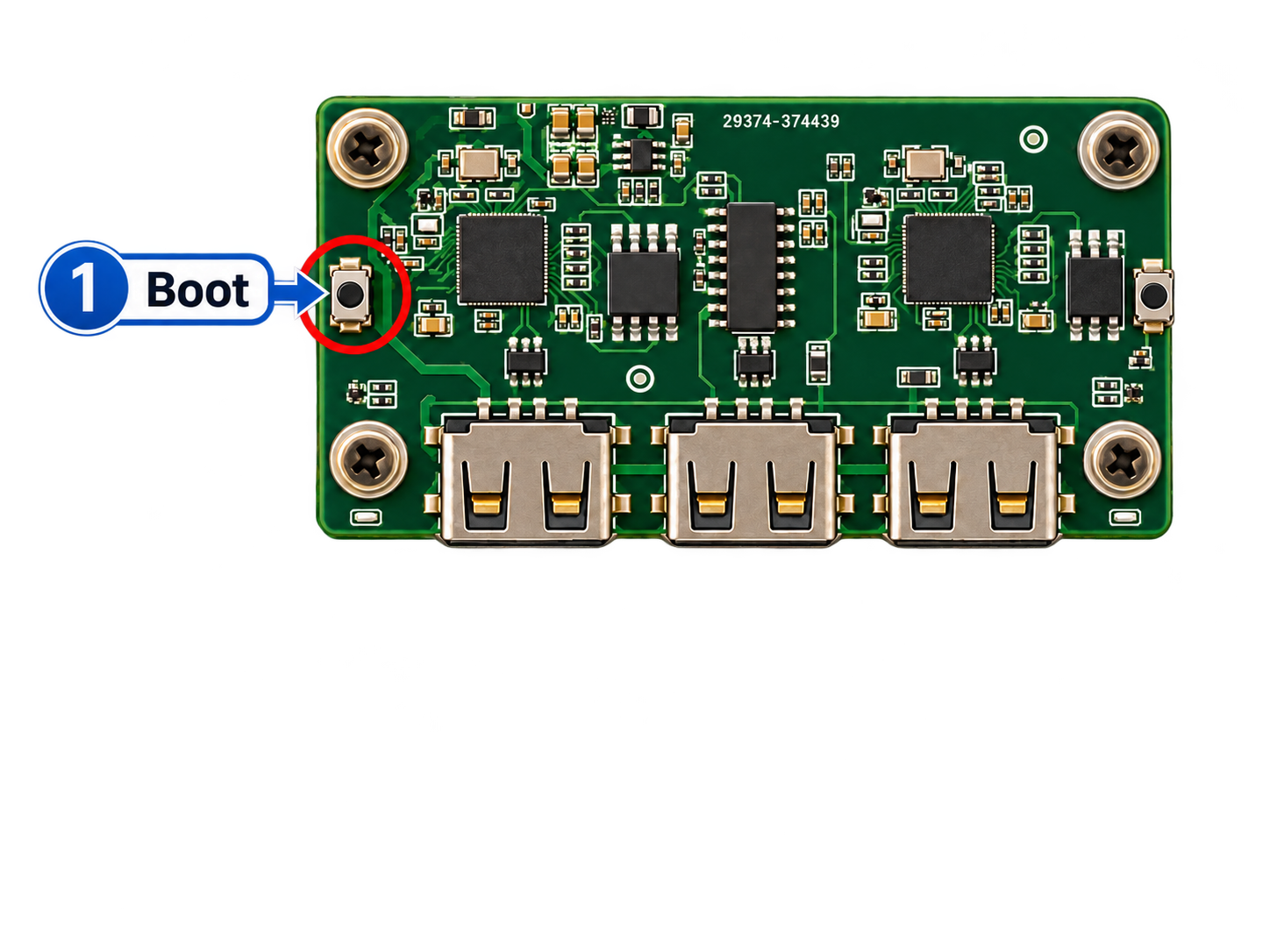
Cable connections
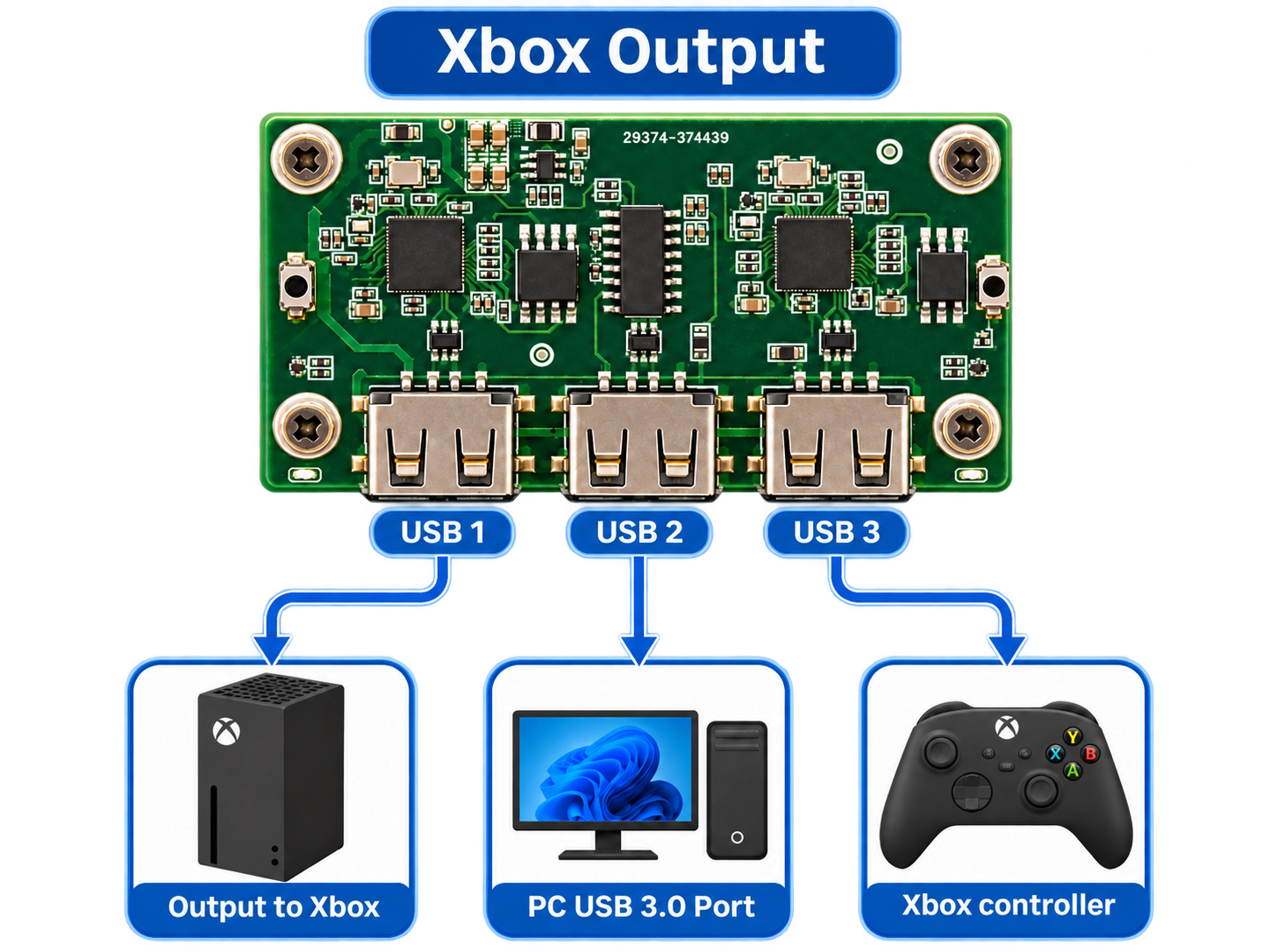
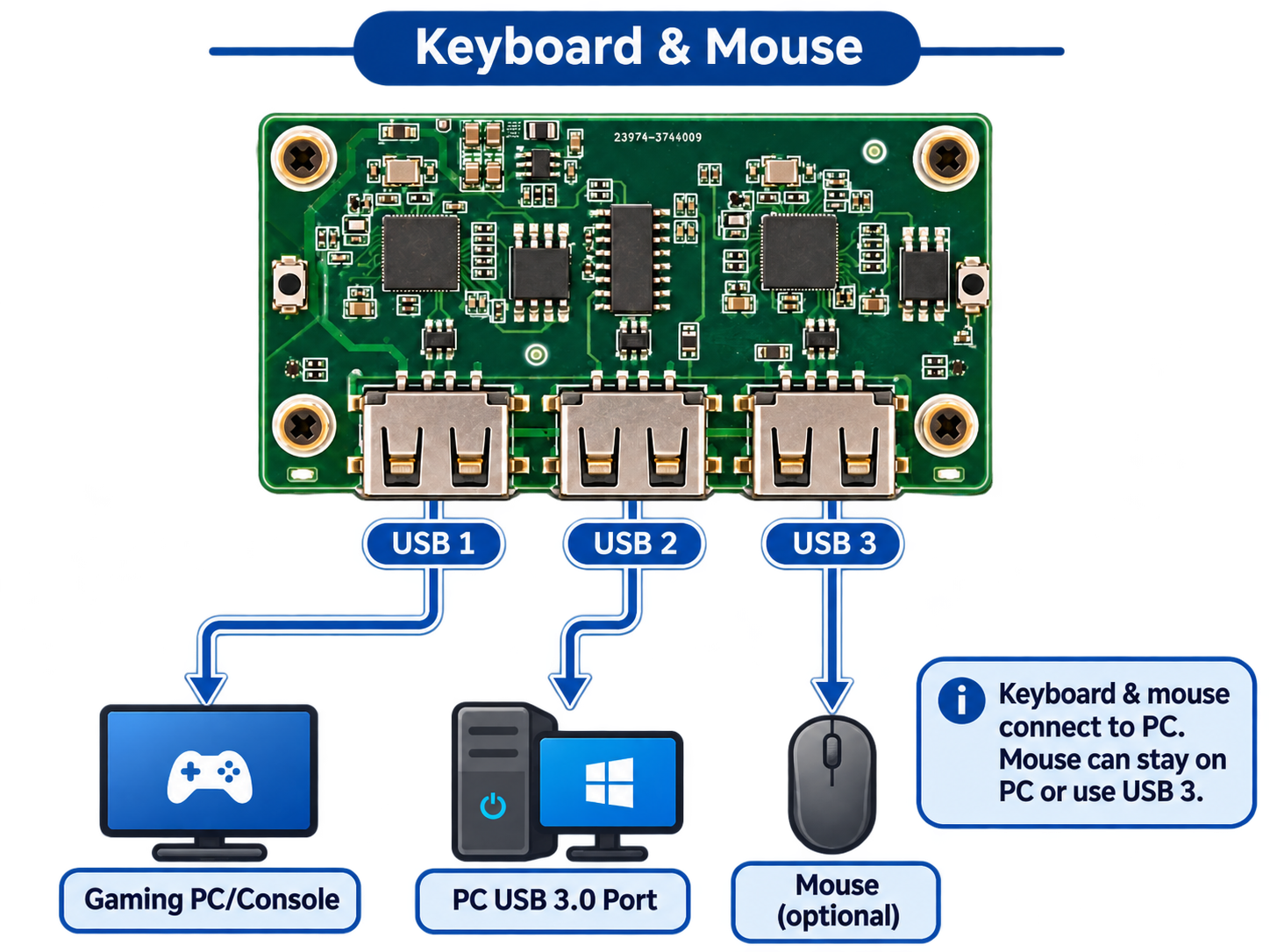
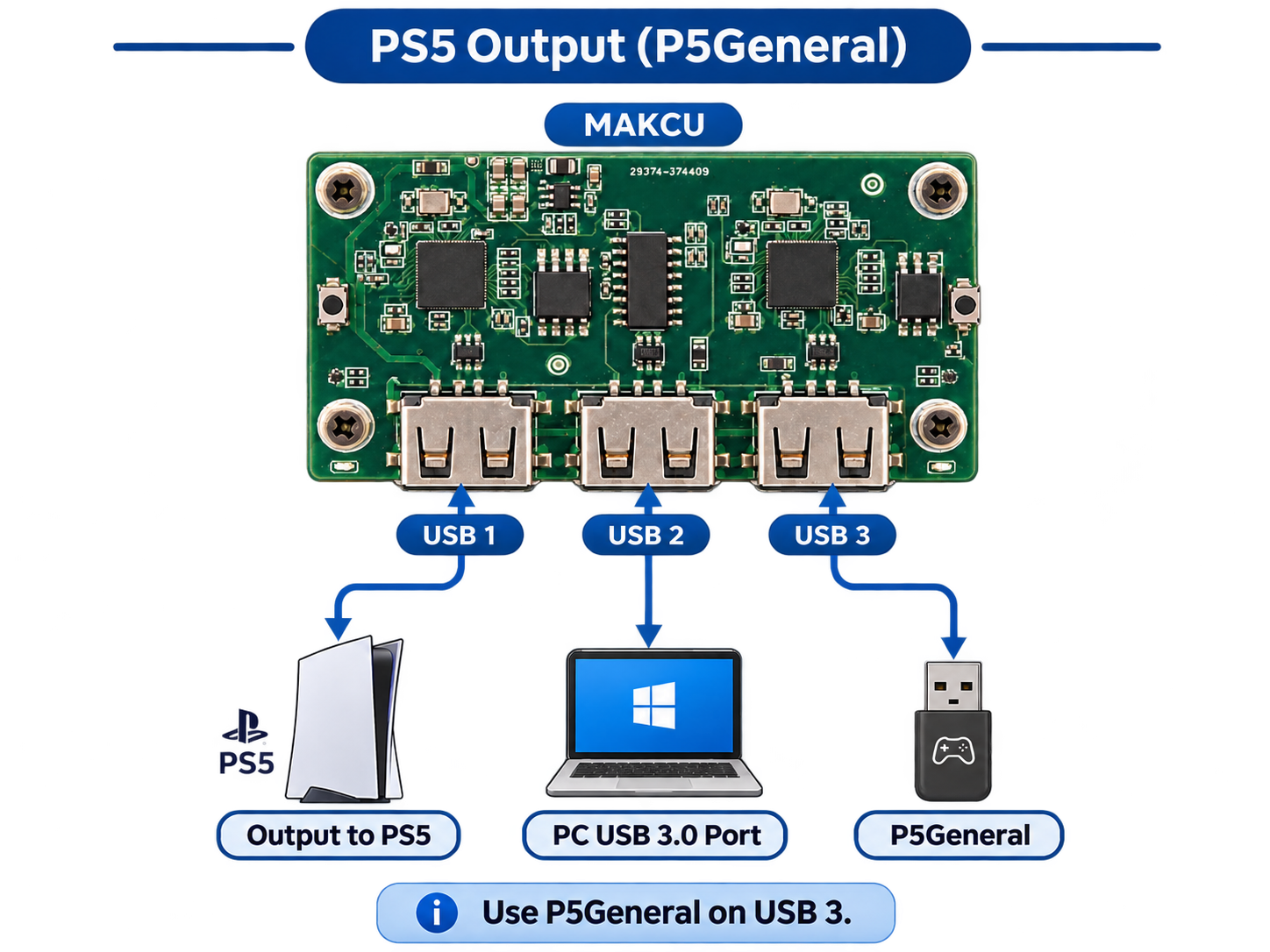
The three USB ports are labeled left to right on every diagram: USB 1 is the gaming-device output, USB 2 connects to a PC USB 3.0 port, and USB 3 takes the mouse or authentication/controller device when required.
Keyboard & Mouse output
With Keyboard & Mouse selected as the Input System, choose MAKCU → KBM to output native keyboard and mouse to a gaming PC or console. Connect the keyboard to the DilemmaAim PC. The mouse can stay on that PC or connect to MAKCU USB 3.
If you instead choose a controller output method such as Titan Two, MAKCU PS5/Xbox, Remote Play or Virtual Controller, DilemmaAim translates keyboard-and-mouse movements into controller inputs.
PS5 controller output
Choose MAKCU → PS5. Connect USB 1 to the PS5, USB 2 to the PC, and a P5General device to USB 3 for authentication. Use the matching PS5 firmware.
Xbox controller output
Choose MAKCU → Xbox. Connect USB 1 to the Xbox, USB 2 to the PC, and your physical Xbox controller to USB 3. Use the matching Xbox firmware.